Transferring a domain from one registrar to another is a process that many website owners face sooner or later. Maybe you want to outsource your domain management to a new provider for better service, faster support, or a better price. Fortunately, domain transfer can be done in a few simple steps without losing your site or email. In this complete guide, we will thoroughly review the domain transfer steps, prerequisites, time required, and important points to follow to ensure a smooth transfer.
What is domain transfer and why is it done?
Domain transfer means changing the official registrar of a domain; That is, the same company that is responsible for registering and managing your domain. In this process, the ownership of the domain does not change and you remain the owner, only the place of domain management is moved. This is different from losing a domain or repurchasing it.
There are many reasons to transfer a domain. Some users are looking for better technical support and faster response; Some want to have all their services such as domain, hosting and server under a single management panel to make things simpler; And a group of people transfer because of a more reasonable renewal price or more advanced DNS management features. Whatever the goal, the transfer process is standard and clear.
The difference between domain transfer and server change
Sometimes users confuse domain transfer with server change. If you just want to change DNS management or site hosting, you just need to change half servers or records and no domain transfer is required. But if you want the entire domain management account and renewals to be transferred to another company, you must go through the complete domain transfer process.
Domain transfer prerequisites
Before starting the transfer, you need to make sure that your domain meets the necessary requirements. If one of these conditions is not met, the transfer will be rejected or delayed:
- At least 60 days have passed since registration: According to international law, a newly registered or recently transferred domain cannot be transferred for 60 days.
- Domain lock open: The transfer lock (Registrar Lock) must be disabled so that the domain is allowed to move.
- Having Transfer Code: A code called Auth Code or EPP Code that acts like a transfer password.
- Owner Email Validity: The email registered in the domain information must be active, as confirmations will be sent to it.
- Not close to the expiration date: It is better if the domain is not close to the expiration date so that it does not expire during transfer.
Important: Temporarily disable the WHOIS privacy service before transferring, as in some cases the owner's email must be available for transfer confirmation to be sent.
Step-by-step steps to transfer a domain
The domain transfer process in all registrars is almost the same and follows the steps below. Follow each step carefully to complete the transfer without errors:
- Domain Unlock: In the current registrar panel, go to Domain Settings and disable Transfer Lock.
- Receive transfer code: From the same panel, request and receive the Auth Code or EPP. This code is usually sent to your email.
- Registering a request at a new registrar: In the destination registrar panel, select the domain transfer option and enter the domain name.
- Enter the transfer code: Enter the EPP code in the transfer form and pay the transfer fee (which usually includes a one-year extension).
- Transfer Confirmation: A confirmation email will be sent to the domain owner's address, which you must click on to initiate the transfer.
- Waiting for completion: Once approved, the transfer process usually takes 5-7 days to finalize.
Summary table of steps and responsibilities
| stage | Place of execution | the result |
|---|---|---|
| Unlock | Current registrant | The domain is ready to transfer |
| Get the EPP code | Current registrant | The transfer key is obtained |
| Request registration | New registrant | The transfer process begins |
| Email verification | Owner's email | The official transfer begins |
| Completion | Both registrants | The domain will be activated in the new account |
Preservation of DNS records during migration
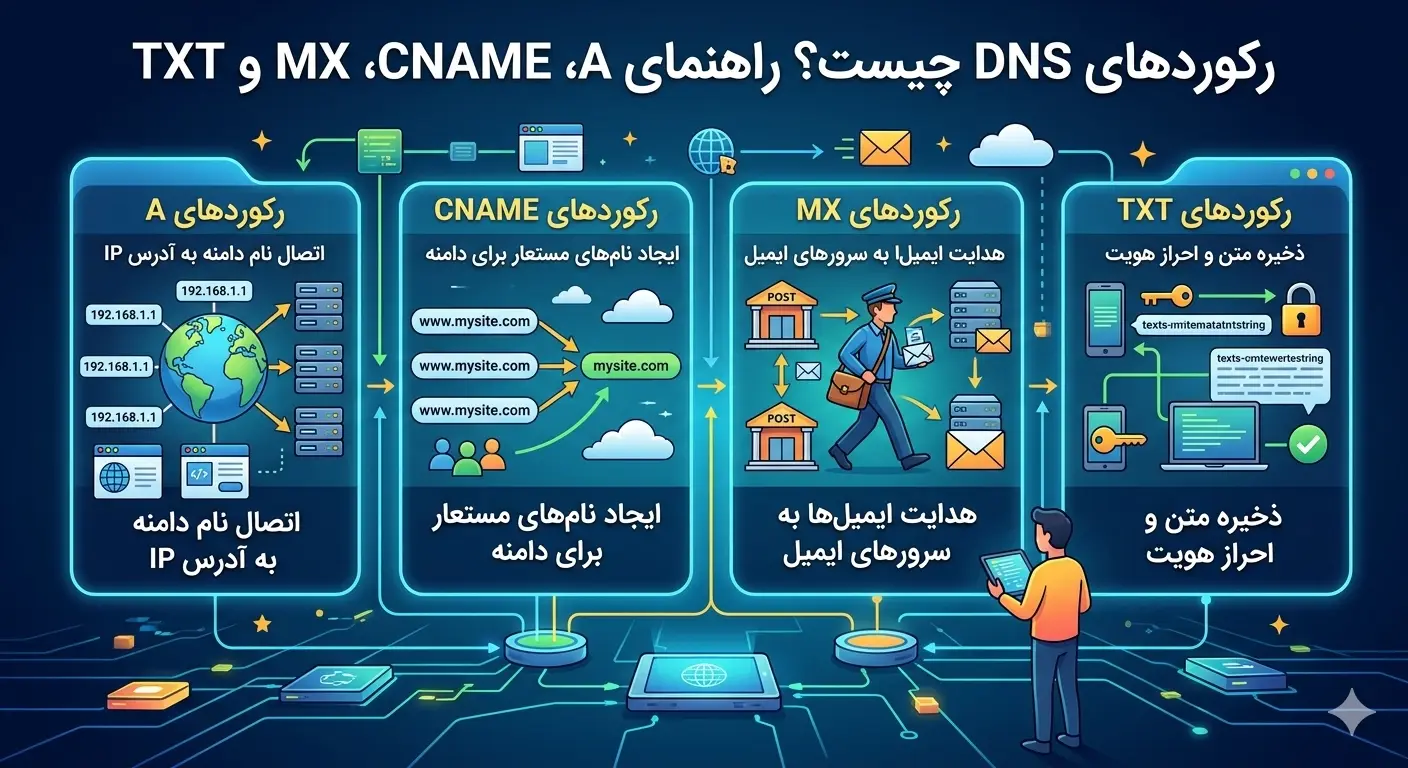
One of the most important concerns when transferring a domain is not to interrupt the site and email. The good news is that transferring a domain doesn't automatically change DNS records, but depending on how you manage it, you may need to rebuild the records. To be sure, make a full copy of all your current records before transferring:
Type    Name    Value                 TTL
A       @       185.192.112.45        3600
A       www     185.192.112.45        3600
MX      @       mail.example.com (10) 3600
TXT     @       v=spf1 include:...    3600
If your DNS management is with the current registrar, it is better to change the half-servers to an independent service before the transfer or to set the same records in advance at the new registrar so that the service remains uninterrupted at the moment of the transfer. This way, even if the DNS management is moved, your site and email will still work.
Recommendation: Perform the domain transfer at a time when traffic to your site is low, such as weekends or off-peak hours, so that if there is a small disruption, it will have less impact.
Duration and cost of domain transfer
Transferring international domains such as .com and .net usually takes between 5 and 7 days; This delay is part of the international standard to prevent unauthorized transfers. Of course, if both parties approve quickly, it may be done sooner. National domains such as .ir usually have a simpler and faster process and are sometimes transferred the same day.
In terms of cost, domain transfer is usually equivalent to the cost of one year of renewal, and in return, one year is added to your domain validity; Therefore, in practice, you do not pay extra money for the transfer itself, and you only do the renewal ahead. If you want to manage your domain and server at the same time, you can also benefit from purchasing a virtual server along with domain transfer and have integrated management.
Common problems and their solutions
Sometimes there are problems with domain transfer. The most common reason for the transfer to be rejected is that the domain is not unlocked or the EPP code is incorrect; In this case, you have to get the code again from the current registrar. Another problem is the failure to receive the confirmation email, which usually occurs because the owner's email is old in the domain information; Be sure to update the owner's email before transferring. Also, if the domain has been registered or transferred in the last 60 days, the system will automatically reject the transfer and you will have to wait.
New Registrant Support can usually check the status of the transfer and provide guidance if any issues arise. To read more about domain management and DNS, you can visit Rapido Server Articles.
The difference between national and international domain transfer
The transfer process for national .ir domains and international domains like .com has differences that being aware of will help make the experience smoother. International domains follow the global EPP standard and, as we said, require an Auth Code and email verification, and their process usually takes five to seven days.
On the other hand, the transfer of the .ir national domain is usually done through the system of the national domain registration center, and the method is slightly different. In this case, the transfer mostly means a change of agent or ownership ID, and is often done faster, sometimes on the same day. For .ir domains, instead of the EPP code, coordination is usually done through the owner ID (Handle) and verification in the registration center system.
| Feature | .com domain | .ir domain |
|---|---|---|
| Verification method | EPP code and email | Owner's ID and registration center system |
| duration | 5 to 7 days | Usually less than a day |
| 60 day limit | has | It usually does not |
Pre-Transfer Preparation: A Practical Checklist
In order to make the transition go smoothly, it is best to go through a complete checklist before starting. Following these points will prevent most common errors:
- Check Expiry Date: Make sure the domain has at least a few weeks left to expire so it doesn't expire during transfer.
- Update Owner Email: Check the email registered in the domain information and update if necessary.
- Back up records: Save all current DNS records to a file.
- Disable lock and privacy: Temporarily disable transfer lock and the WHOIS privacy service.
- Receive and check the EPP code: Receive the transfer code and make sure it is correct.
Note: After the transfer is complete, re-enable the domain lock to prevent future unauthorized transfers. This is an important layer of security to maintain domain ownership.
Track transfer status
Once the transfer process has started, you can track its status in the new registrar panel. Typically, a domain is in one of several states: pending owner approval, pending release from previous registrar, processing, or completed. If the previous registrant does not reject the request within a specified period, the transfer is automatically approved and completed.
During this time, your site and email will continue to work without interruption if you have kept the records. It is recommended not to make important changes in DNS records during this period so that the transfer process is not disrupted. Once the transfer is complete, you will be in full control of the domain in the new panel and can manage records, renewals and other settings from there.
If you want to upgrade your site hosting along with the domain transfer, purchasing a suitable virtual server will allow you to have the domain and server under a single management panel and simplify their management. You can register a new domain from domain registration section.
Actions after the transfer is complete
Once the domain transfer has been successfully completed and full control of it has been transferred to the new panel, there are a few important steps that should not be forgotten. These tasks ensure that your domain is secure and all services are working properly.
- Check DNS records: Make sure all A, CNAME, MX and TXT records are set correctly in the new panel and the site and email are working without problems.
- Re-enable domain lock: Re-enable transfer lock to prevent unauthorized transfers in the future.
- Set auto-renew: Enable auto-renew in the new panel so that the domain never expires accidentally.
- Privacy reactivation: If you disabled the WHOIS privacy service before the migration, re-enable it.
It is also recommended to check the owner and contact email information in the new panel so that they are accurate and up-to-date. This information is necessary to receive renewal alerts and important confirmations. By performing these final steps, the process of transferring your domain will be completed completely and safely, and you can safely continue managing the domain from the new panel. Proper and principled domain transfer is an investment that will bring you years of peace of mind.
Frequently asked questions
Will my site be unavailable during domain transfer?
No, your site and email will continue to work without interruption if you preserve the DNS records before the move or rebuild them at the new registrar. Domain transfer does not automatically cause service interruption.
What is the EPP code or Auth Code?
The EPP code is a unique security code for each domain that acts like a transfer password. You receive this code from the current registrar and enter it in the new registrar to verify ownership of the transfer and prevent unauthorized transfers.
Why was my domain transfer rejected?
The most common reasons are that the domain is not unlocked, the EPP code is wrong, the domain is expired or 60 days have not passed since the last registration or transfer. By fixing these items, you can try again.
Does transferring a domain cause you to lose any remaining credit?
No, the remaining validity of the domain will not be lost. In most cases, one year of renewal is added to the previous domain validity as part of the transfer fee, so the transfer is in your favor.