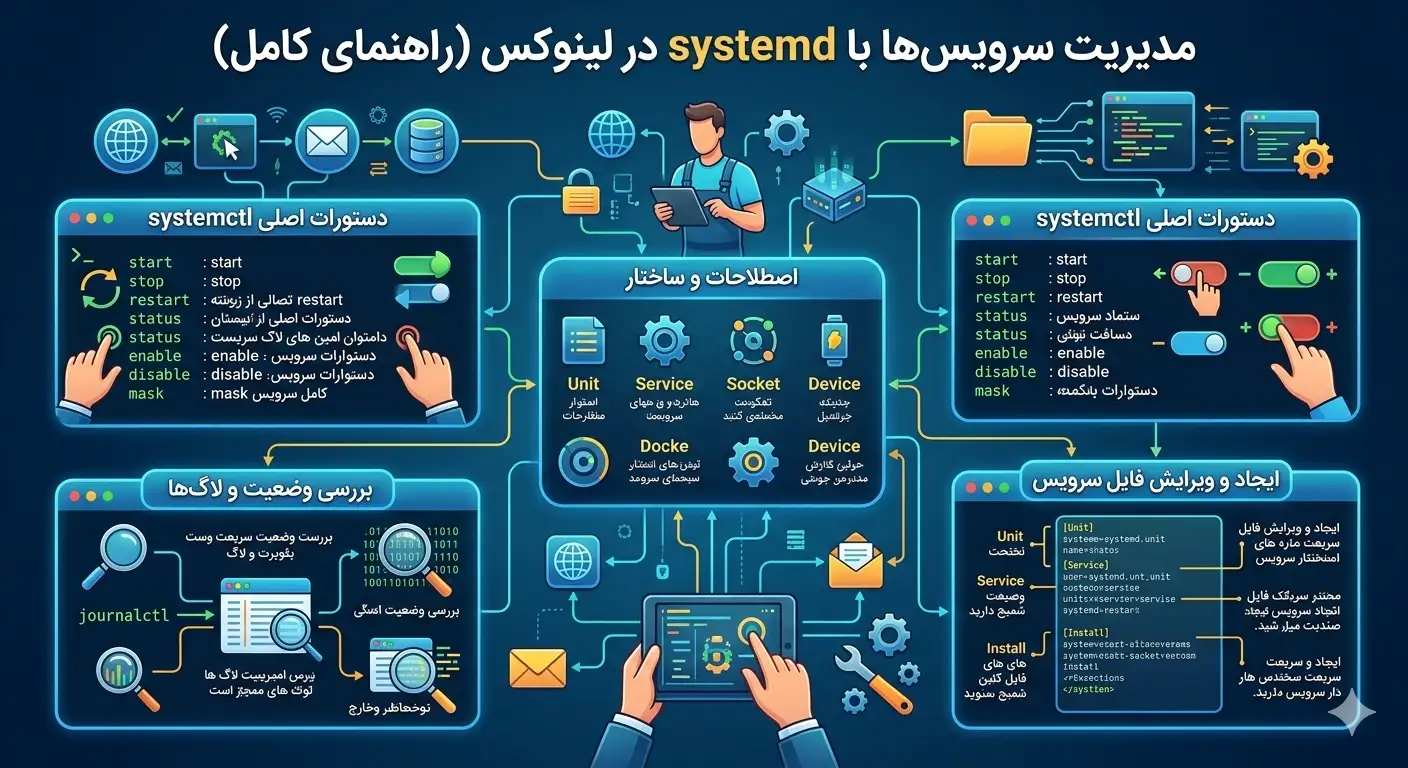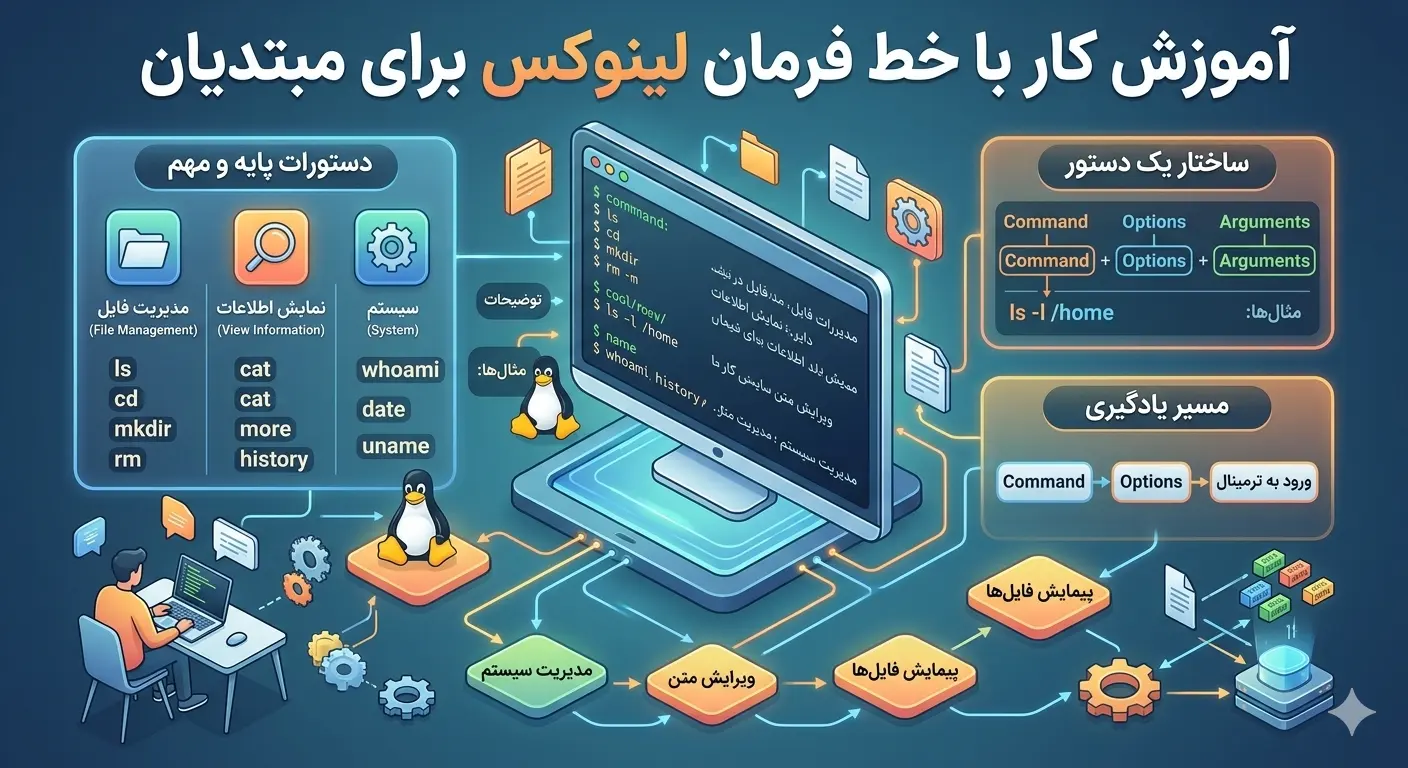
Learning the Linux command line is a skill that opens up a new world of power and control. If you have just created a virtual server or want to enter the world of Linux professionally, mastering the terminal and basic commands is the first and most important step. Contrary to what many beginners think, working with the command line is not only scary, but after learning a few key commands, you can do many things faster and more accurately than in a graphical environment. In this step-by-step tutorial from Rapido Server, you will get to know terminal concepts, file navigation, license management and utility tools from scratch.
What is the Linux command line and why should we learn it?
Command Line Interface (CLI) is a text interface where you type commands and the system executes them. The program that makes this interaction possible is called a "shell" and the most common one on Linux is the Bash shell. When you connect to a remote server, there is usually no graphical environment and the only way to manage the server is from the command line.
Learning Linux command line training has many advantages:
- Speed. Many tasks are done with a short command, faster than multiple clicks in the graphical environment.
- Power. By combining commands you can perform complex operations that are not possible in the graphical environment.
- Automation. You can save commands in script format and run them automatically.
- Remote administration. For managing servers without a graphical interface, the command line is your only option.
Note: To practice these commands, the best option is a real server. You can get a cheap Linux VPS from the Buy Virtual Server page and practice without fear of crashing the main system.
Navigate the file system with basic commands
The first thing you need to learn in the Linux command line tutorial is moving between folders and viewing their contents. To see which folder you are currently in, use the pwd (short for print working directory) command:
pwdYou use ls to see a list of files and folders in the current path. By adding switches, you can see more information:
ls
ls -l
ls -lah
The switch -l shows full information such as permissions and size, -a also shows hidden files, and -h shows sizes in readable form (eg KB and MB). To move between folders, you use cd (short for change directory):
cd /var/www
cd ..
cd ~
In this example, the first command goes to the specified path, cd .. moves back one folder, and cd ~ returns you to the user's home folder. It's important to understand the difference between an absolute path (which starts at the root / ) and a relative path (which starts at the current position) here.
Manage files and folders
After learning to navigate, it's time to create, copy, move and delete files. The following table summarizes the most important file management commands:
| order | Application | Example |
|---|---|---|
| touch | Create an empty file | touch note.txt |
| mkdir | Create a folder | mkdir project |
| cp | Copy file or folder | cp a.txt b.txt |
| mv | Relocation or name change | mv old.txt new.txt |
| rm | Delete the file | rm note.txt |
| cat | Display the contents of the file | cat note.txt |
Use the -p switch to create a folder with its parent folders at once:
mkdir -p projects/website/assetsTo delete a folder with all its contents, a combination switch is used, but be careful in using it:
rm -r old_projectSEVERE WARNING: The rm -rf / command erases the entire file system and there is no going back. Never run rm commands without carefully checking the path. Unlike the graphical environment, there is no recycle bin in the command line, and the deleted file is usually gone forever.
View and edit the content of files
An important part of learning the Linux command line is working with the contents of files. For short files, cat is sufficient, but for long files, use less, which allows scrolling and searching:
less /var/log/syslogTo see the beginning or end of a file, you use head and tail. The tail command is especially useful for checking live logs:
head -n 20 access.log
tail -f access.log
The -f switch in tail follows the file live and immediately displays any new lines added to it. To edit files in the terminal, the nano editor is the easiest option for beginners:
nano config.txtIn nano you work with the shortcut keys at the bottom of the screen; For example Ctrl+O to save and Ctrl+X to exit. There are more advanced editors like vim that are more powerful but have a steeper learning curve.
Understand and manage file permissions
One of the key concepts in Linux is the permission system. Each file and folder has three levels of access: read (r), write (w) and execute (x), which are defined for three groups: owner, group, and others. When you run the ls -l command, you'll see these permissions at the beginning of each line, for example -rwxr-xr--. chmod is used to change permissions:
chmod 755 script.sh
chmod +x script.sh
In numerical mode, each digit is the sum of read (4), write (2) and execute (1) values. So 7 means full access and 5 means read and execute. To change the ownership of a file, you use chown:
chown www-data:www-data index.htmlMany administrative commands require root access. To temporarily run a command with administrator access, you use sudo at the beginning of it:
sudo systemctl restart nginxProcess search and management tools
The more you work with Linux, the more you need search tools. The find command is used to find files by name, size, or date:
find /var/www -name "*.log"The very powerful grep command is used to search for a text pattern in files. For example, finding lines that contain the word error:
grep -i "error" /var/log/syslogOne of the beautiful concepts of Linux is a pipe, marked with | It displays and sends the output of one command to the input of the next command. For example, counting the number of lines that contain the word error:
cat syslog | grep "error" | wc -lThere are also some important commands for managing running processes. The top command or its more modern version htop shows the resource consumption live, and with ps you can see the list of processes:
ps aux
kill 1234
The kill command stops a process by its ID (PID). If you want to deepen your skills, the Rapido Server Articles section is a great resource to continue your learning journey.
Output routing and combining commands
One of the concepts that transforms Linux command line training from a simple tool to a powerful environment is input and output redirection. By default, the output of the commands is displayed on the screen, but you can also redirect it to a file. The > symbol writes the output to the file (and erases the previous content), and the >> symbol appends the output to the end of the file:
ls -l > files.txt
echo "خط جدید" >> files.txt
In contrast, the < symbol gives the contents of a file as input to the command. Combining these features with pipe creates many possibilities. For example, sorting the contents of one file and saving the result to another file:
sort names.txt | uniq > sorted_unique.txtThis ability to chain commands is one of the core Unix philosophies: that each tool does one job well, and that they can be combined to solve complex tasks.
Working with PATH variables and paths
The Bash shell uses variables to store information. Environment variables are information that programs use. To see all environment variables:
printenvOne of the most important variables is PATH which holds the list of directories in which the shell will look for commands. To view it:
echo $PATHTo create a variable and use it:
NAME="RapidoServer"
echo "سلام $NAME"
If you want a variable to be permanently available at every login, add it to the ~/.bashrc file. This file is executed every time a new Bash session is opened and is a convenient place for personal settings, variables, and aliases. For example, creating an alias for a long command:
alias ll='ls -lah'Compress and archive files
In server management, you often need to bundle multiple files or reduce their size. The standard tool for this is tar. To create a compressed archive from a folder:
tar -czvf backup.tar.gz /var/www/mysiteIn this command, the switch is c to build, z to compress with gzip, v to show details and f to specify the file name. To extract an archive:
tar -xzvf backup.tar.gzThese commands are very useful for backing up important server files and form the basis of many automated backup scripts. By combining tar and the scp command you learned earlier, you can easily transfer the backup to another server.
Network commands and connection checks
Networking is an integral part of server management. A few basic commands will help you check the connection status. To test access to a host:
ping -c 4 google.comTo download a file from the Internet directly in the terminal, use curl or wget:
curl -O https://example.com/file.zip
wget https://example.com/file.zip
To see what ports are open on the server and what services are listening on them:
ss -tulpnThis command displays a list of listening ports and is useful for troubleshooting connectivity issues or checking server security. Familiarity with these network tools will help you identify service access problems faster.
Package management and system updates
One of the daily tasks in server management is installing and updating software. Debian-based distributions such as Ubuntu use the apt package manager. Update the package list first, then upgrade the installed packages:
apt update
apt upgrade -y
To install a new package, for example the htop monitoring tool:
apt install htop -yAnd to remove a package:
apt remove htop -yRed Hat-based distributions like AlmaLinux and CentOS use dnf instead of apt, but the general logic is the same. Getting into the habit of regularly updating your system is one of the most important security measures, as security patches are released this way and protect your server from known vulnerabilities.
Frequently asked questions
Do I need to know programming to learn Linux command line tutorial?
No, you don't need any programming knowledge to get started. Working with the command line mostly depends on memorizing and practicing a few basic commands. With regular practice, you will gradually learn more advanced concepts such as scripting, where a basic understanding of programming logic is helpful.
What happens if I enter the wrong command?
Most commands will only display an error message and do nothing if they are wrong. However, malicious commands like rm -rf can erase data permanently. For this reason, it is recommended to practice on a test server first and check the path carefully before executing the removal commands.
What is the difference between sudo and root?
root is the main user and has the highest level of access in the system. sudo is a tool that allows a normal user to run a specific command with root access, without having to be fully logged into the root account. Using sudo is more secure because it restricts administrative access and is traceable.
How can I learn more commands?
Almost every command in Linux has a built-in help. Type man followed by the name of the command, such as man ls, to see its complete documentation. Also, many commands display a summary of their options with the --help switch. Constant practice on a real server is the best way to learn.