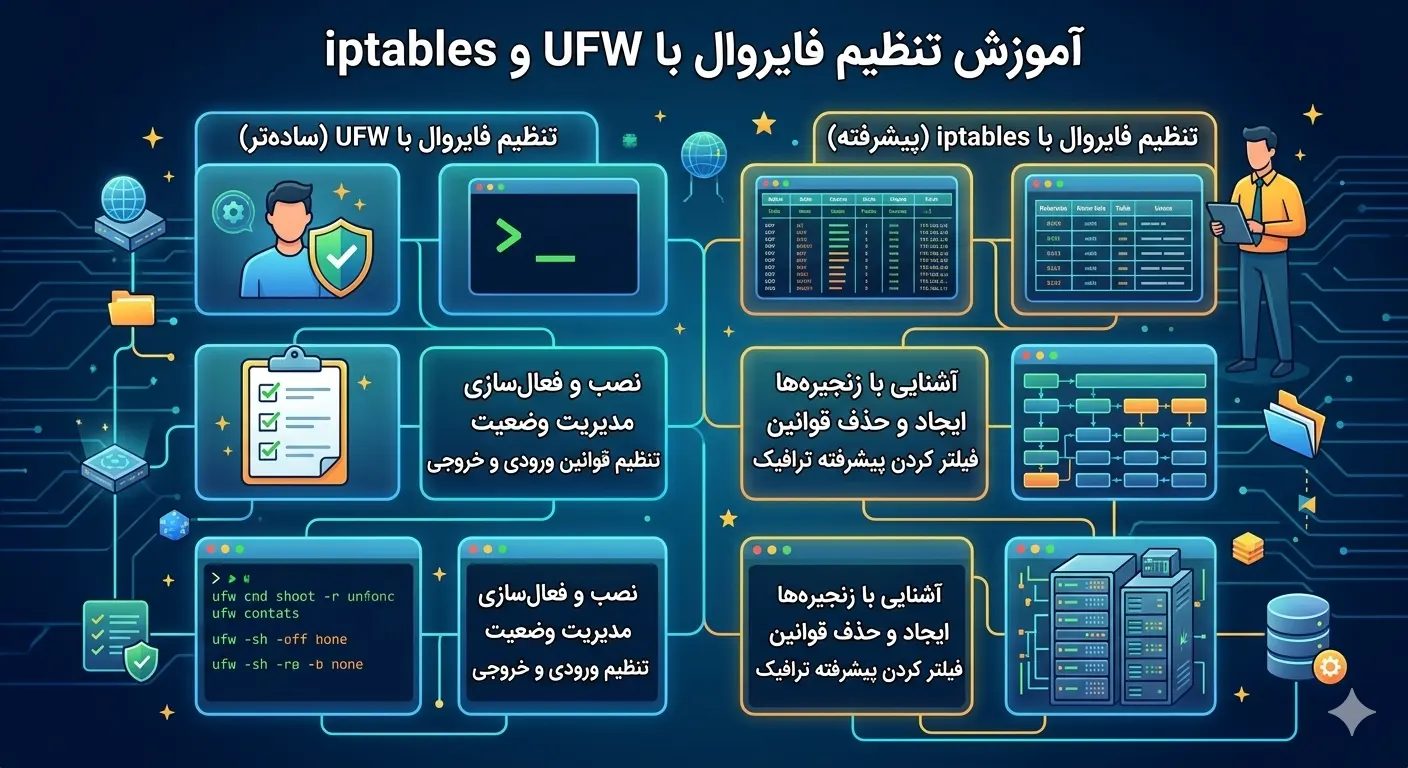
Configuring the Linux firewall is one of the most basic server management skills and is the first line of defense against unauthorized access. A firewall determines which network traffic is allowed to enter or exit your server and which should be blocked. In this comprehensive tutorial, you will get to know both the simple and user-friendly UFW tool and the powerful engine behind it, i.e. iptables, so that you can implement a professional and secure firewall on any Linux virtual server. If you don't have a suitable server yet, you can buy a virtual server to provide a stable platform to run these settings.
What is a Linux firewall and how does it work?
In the Linux kernel, network packet management is done by a subsystem called netfilter. Tools such as iptables and its more modern successor nftables are interfaces for setting the rules of this subsystem. UFW, which stands for Uncomplicated Firewall, is a simplification layer on iptables that makes it much easier for server administrators.
Simply put, every network packet entering or leaving a server is checked against a set of rules. If the packet matches a rule, the specified operation (accept, drop, or reject) is applied to it. A key principle in Linux firewall setup is the "Default Deny" policy: anything not explicitly allowed is blocked.
The difference between DROP and REJECT
- DROP: silently drops the packet; The sender receives no response and the port appears as if it does not exist.
- REJECT: Rejects the packet but returns an error message to the sender indicating that access is denied.
For added security, DROP is usually preferred because it provides less information about your firewall structure to an attacker. However, in internal networks where response speed is important, REJECT is sometimes selected so that applications immediately notice that the port is closed instead of waiting for a long timeout.
Incoming, outgoing and passing traffic
In setting the Linux firewall, you need to separate the three traffic directions. Inbound traffic is the packets that come to the server from the outside and the most security focus is on them. Outbound traffic is the packets that the server sends out; It is usually allowed, but in highly sensitive environments, limiting it can also prevent data leakage. Forward traffic refers to when the server acts as a router or gateway. In most conventional servers, the main focus is on controlling incoming traffic.
Getting started with UFW to configure Linux firewalls
UFW is usually pre-installed in Ubuntu and Debian. If not, it is easily installed:
sudo apt update
sudo apt install ufw -y
sudo ufw status
Set the default policies before enabling the firewall. This is the most important step: block all incoming traffic and allow all outgoing traffic.
sudo ufw default deny incoming
sudo ufw default allow outgoing
Security Warning: Be sure to allow the SSH port before enabling UFW. If you don't do this and enable the firewall, your SSH connection will be immediately disconnected and you will be locked out of the server. This is one of the most common mistakes of novice managers.
Open necessary ports
Now allow the required ports. For a typical web server, SSH, HTTP and HTTPS ports are sufficient:
sudo ufw allow 22/tcp
sudo ufw allow 80/tcp
sudo ufw allow 443/tcp
UFW also supports service names, so you can use a name instead of a port number:
sudo ufw allow ssh
sudo ufw allow 'Nginx Full'
The Nginx Full option opens both ports 80 and 443 at the same time. Use the sudo ufw app list command to see the list of available profiles.
Enable and check the firewall
sudo ufw enable
sudo ufw status verbose
The output of the status command should show a list of active rules. It is recommended to use numbered mode for easier rule management:
sudo ufw status numberedAdvanced rules in the UFW
Sometimes you need to open access to a port only for a specific IP address. For example, restricting SSH access to only your office IP greatly increases security:
sudo ufw allow from 203.0.113.5 to any port 22 proto tcpOr you can allow an entire subnet:
sudo ufw allow from 192.168.1.0/24 to any port 3306 proto tcpLimiting the connection rate (Rate Limiting)
UFW has a built-in ability to limit the connection rate, which is very useful against brute-force attacks. This rule does not allow an IP to make more than 6 connections in 30 seconds:
sudo ufw limit 22/tcpThis feature is especially valuable for the SSH port, as most automated attacks are performed with numerous and rapid attempts, and rate limiting effectively slows them down without preventing real users from accessing them.
Block a specific IP
Sometimes you need to completely block a specific IP address that is behaving maliciously. In UFW, this is done with the deny rule, which must be placed before the other allow rules:
sudo ufw deny from 198.51.100.10
sudo ufw insert 1 deny from 198.51.100.10
The second command inserts the rule at the beginning of the list (position 1) to ensure that it is evaluated before any enabling rule. The order of the rules in the firewall is very important, because the first matching rule is applied.
Remove the rules
To delete a rule, first find its number from the numbered output and then delete:
sudo ufw status numbered
sudo ufw delete 3
Work directly with iptables
Although UFW is sufficient for most applications, understanding iptables is essential for complex scenarios and troubleshooting. iptables uses the concept of "Chain". The three main chains in the filter table are INPUT (incoming traffic to the server), OUTPUT (outgoing traffic) and FORWARD (passing traffic).
To view the current iptables rules in full detail:
sudo iptables -L -v -n --line-numbersBuilding a basic rule set with iptables
A basic secure configuration usually looks like this: first we allow existing and loopback connections, then we open the necessary ports, and finally we set the default policy to DROP.
sudo iptables -A INPUT -i lo -j ACCEPT
sudo iptables -A INPUT -m conntrack --ctstate ESTABLISHED,RELATED -j ACCEPT
sudo iptables -A INPUT -p tcp --dport 22 -j ACCEPT
sudo iptables -A INPUT -p tcp --dport 80 -j ACCEPT
sudo iptables -A INPUT -p tcp --dport 443 -j ACCEPT
sudo iptables -P INPUT DROP
Conntrack rule is very important; This rule ensures that responses to connections initiated by the server itself (such as updates) are allowed.
Comparison table of common commands
| Operation | Equivalent to UFW | Equivalent to iptables |
|---|---|---|
| Allow port 80 | ufw allow 80/tcp | iptables -A INPUT -p tcp --dport 80 -j ACCEPT |
| Reject default input | ufw default deny incoming | iptables -P INPUT DROP |
| View the rules | ufw status | iptables -L -n |
| Delete a rule | ufw delete NUM | iptables -D INPUT NUM |
Permanent storage of iptables rules
One of the important differences between iptables and UFW is that iptables rules are lost by default after a server restart. To make them permanent, you must use the iptables-persistent package:
sudo apt install iptables-persistent -y
sudo netfilter-persistent save
Every time you change the rules, you have to save again. UFW does this automatically, making it easier for day-to-day management.
Note: Never manage UFW and manual iptables rules at the same time without coordination. Because UFW writes its own iptables rules, manual manipulation can cause interference and unpredictable behavior. Pick a tool and stick with it.
Familiarity with nftables; Modern successor to iptables
In new Linux distributions, nftables is gradually replacing iptables. With a more unified syntax and better performance, nftables simplifies rule management and has better support for IPv4 and IPv6 concurrently. On many systems, the iptables command is actually a compatibility layer on top of nftables. To view nftables rules:
sudo nft list rulesetIf you're just starting out and need low-level control, learning nftables is a better investment for the future than iptables. However, for day-to-day management, UFW is still the easiest and fastest way, and most server administrators will need it.
Logging of blocked traffic
To know what traffic your firewall is blocking, you can enable logging. This is very useful for troubleshooting and identifying attack patterns:
sudo ufw logging on
sudo tail -f /var/log/ufw.log
By checking these logs, you can see which IPs have tried to access closed ports and block them permanently if necessary. Note that excessive logging can fill disk space, so adjust the logging level to suit your needs.
Firewall management for IPv6
An important point that is often forgotten is the IPv6 firewall. If your server has an IPv6 address but your firewall only enforces IPv4 rules, that effectively leaves a backdoor open for attackers to exploit. Fortunately, UFW applies rules to both versions by default, but you need to make sure this feature is enabled. Check the /etc/default/ufw file and verify the following value:
IPV6=yesIf you work with iptables manually, remember that for IPv6 you need to use the separate ip6tables tool and define the rules separately. Neglecting this point is one of the most common reasons for security leaks in modern servers.
Troubleshooting and common mistakes in Linux firewall setup
Most firewall problems stem from a few repeated mistakes. By knowing these things, you can avoid big problems.
- Forgetting to enable SSH: The most common mistake that leads to lost access. Always allow SSH first.
- Open database port: Ports such as 3306 (MySQL) or 5432 (PostgreSQL) should not be open on the public Internet.
- Don't close temporary ports: Don't forget to close the ports you opened for testing.
- Not saving iptables rules: which causes everything to disappear after restart.
To make sure your firewall is working properly, you can scan the server's open ports from another system with the nmap tool and make sure only the ports you want are open. A properly configured firewall, along with other security measures, provides a solid foundation for your server. A good habit is to document your firewall configuration; That is, write down the reason and date for each rule you add. As time passes and the number of rules increases, this documentation helps you know which rules are there for what purpose and which rules are no longer necessary. A firewall whose rules are clear and documented is both safer and easier to maintain. To read more, you can refer to other Rapido Server articles.
Frequently asked questions
Is UFW better or iptables?
UFW and iptables are not competitors; UFW is actually a simple interface on iptables. For most users and routine applications, UFW is a better choice due to its simplicity and automatic saving of rules. iptables is suitable for complex scenarios, NAT and finer control.
Does enabling firewall affect server performance?
Under normal circumstances, with a reasonable number of rules, the firewall's impact on server performance is almost zero. netfilter is highly optimized at the kernel level. Only at very large scales with thousands of rules may a slight effect be felt, which is also improved with nftables.
How do I make sure the firewall is working properly?
From another system, scan the server's ports with the nmap tool and check that only authorized ports are open. Also, the sudo ufw status verbose or sudo iptables -L -n command shows the status of active rules.
What should I do if I stay out of the server with the firewall?
In this case, you need to log in through the VNC console or the virtual server management panel that works independently of the SSH network and remove the blocking rule or temporarily disable the firewall. That's why it's so important to have emergency console access.